
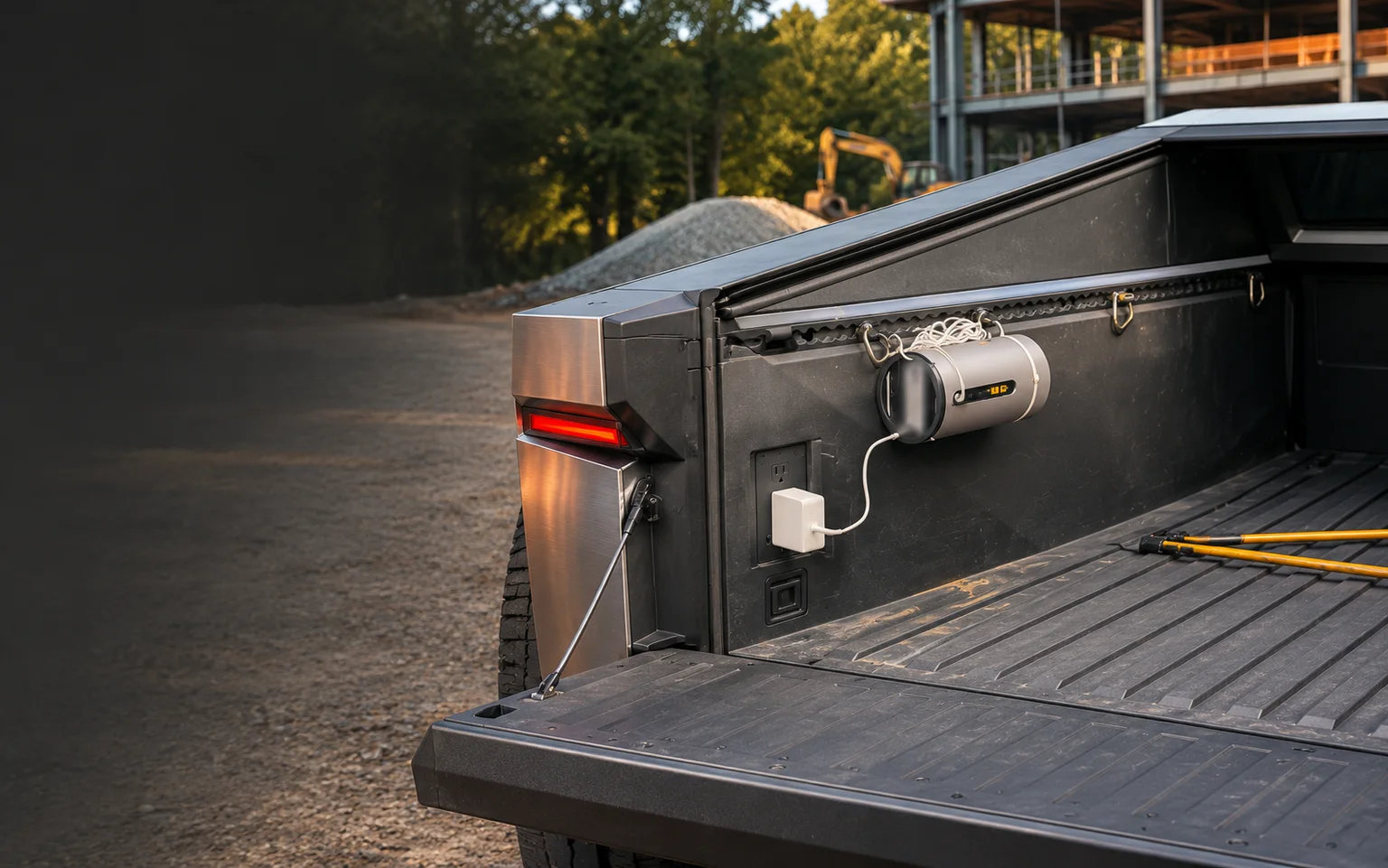
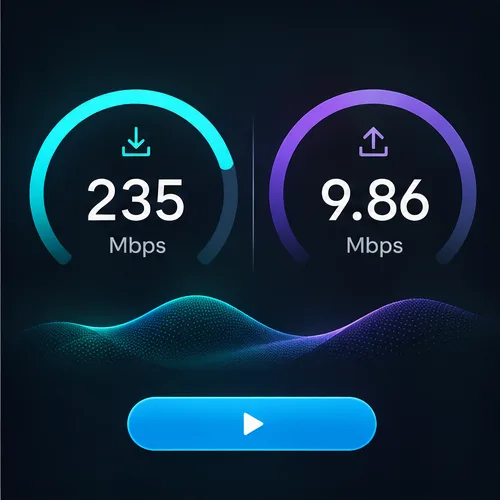
CyberWiFi speed test results
Actual speeds vary by location, coverage, network conditions, and connected device.
- Download
- 235 Mbps
- Upload
- 9.86 Mbps
Online in 6 steps
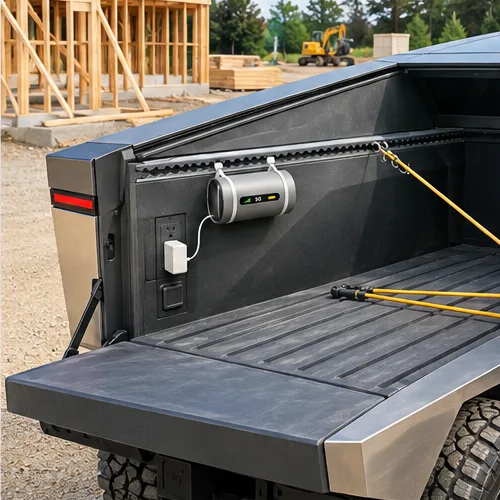
This illustrated truck-bed setup is one way to use CyberWiFi. At home or in a worksite trailer, plug the gateway into a 120V outlet and connect your devices where T-Mobile coverage is available.
 1
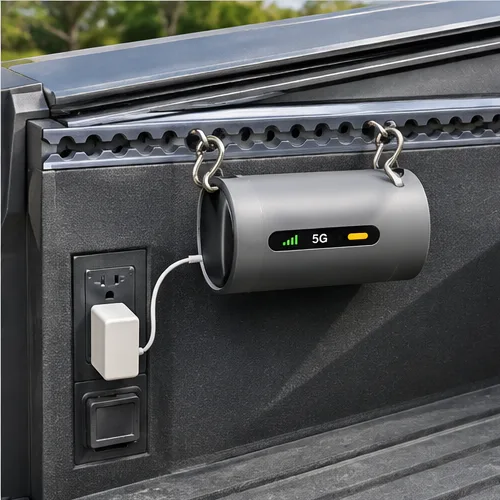
Hang it on the rail
Two hooks hold the gateway on the bed's side rail.
 2
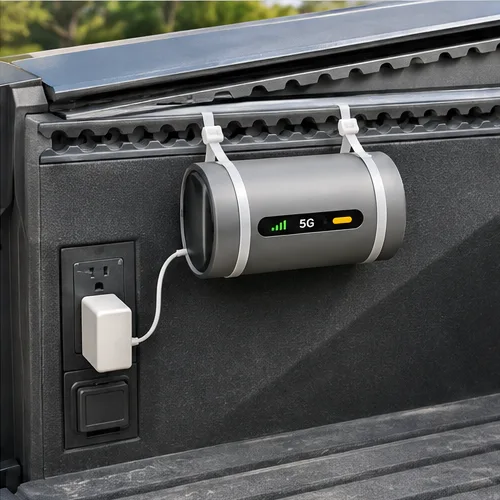
Strap it down
Zip ties keep the gateway steady on the road.
 3
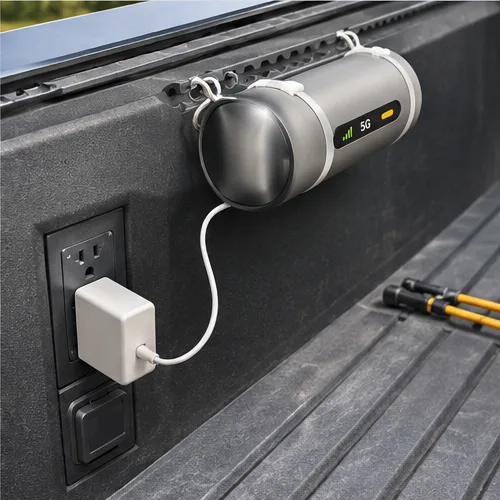
Plug into the bed outlet
The truck's 120V outlet powers the connection. No generator is needed.
 4
Park and power on
Drop the tailgate and get the connection ready for business.
 5
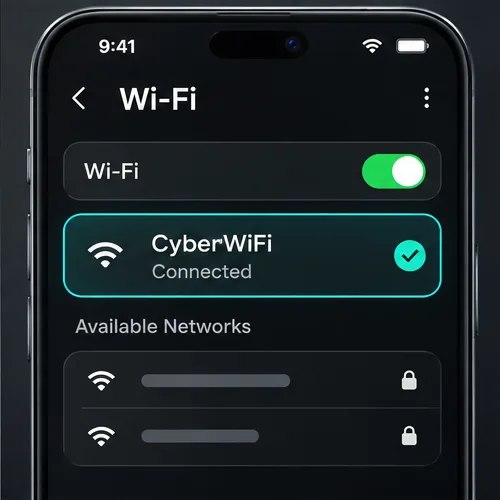
Join the network
Connect phones, tablets, laptops, and card readers.
 6
Run a speed test
Confirm the connection at the place where your team will use it.
Use it wherever you have power and coverage.
Move the gateway between locations. You need a 120V outlet and T-Mobile coverage at the place you want to use it.
Worksite trailers
Give your crew a shared connection in a powered trailer or temporary office.
Home internet
Use CyberWiFi as your dedicated home internet service or as a backup connection.
Vehicles
Use it in any vehicle with a 120V power outlet.
What’s included for $40 per month
The monthly price is for internet service and includes the gateway and unlimited data. There’s no activation or setup fee and no other service fees. Taxes vary by billing address.
Choose the connection that matches the job.
CT Mobile
Business cellular plans, device compatibility, and personal support.
Always-On Internet Backup
Automatic cellular failover for a fixed business location.
Check CyberWiFi coverage for your location.
Call or email Continuous Touch to discuss where you’ll use CyberWiFi and check T-Mobile coverage.
Actual speeds and coverage vary by location, network conditions, connected device, and other factors.
Continuous Touch and CyberWiFi are not affiliated with or endorsed by Tesla. The Cybertruck shown is an example installation.